Activation of the service mode
-
Connect your smartphone to the WiFi network “nrt_service”.
-
Enter WiFi key (factory setting “#843678*”, see WEM Servicecode).
-
-
Open the browser on the smartphone and enter URL 192.168.4.1.
-
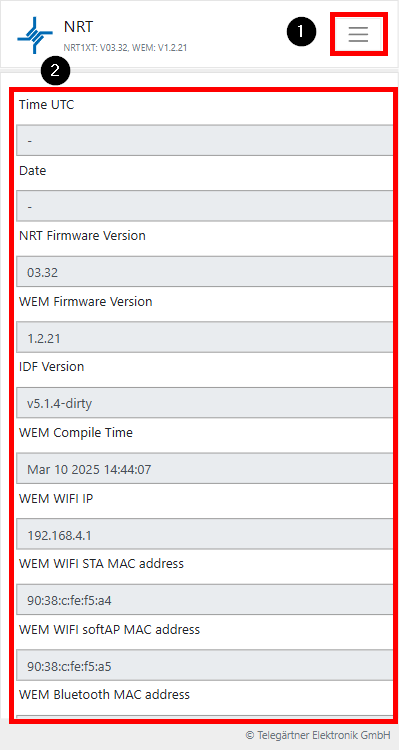
You are now in the service menu and receive the following status overview:
-
Opens the menu for selecting the available options.
-
Version and status overview of the NRT and the WEM module.
Menu option description
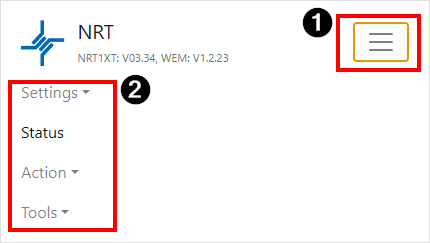
After selecting menu item (1), the following options are available.
Settings:

PRG
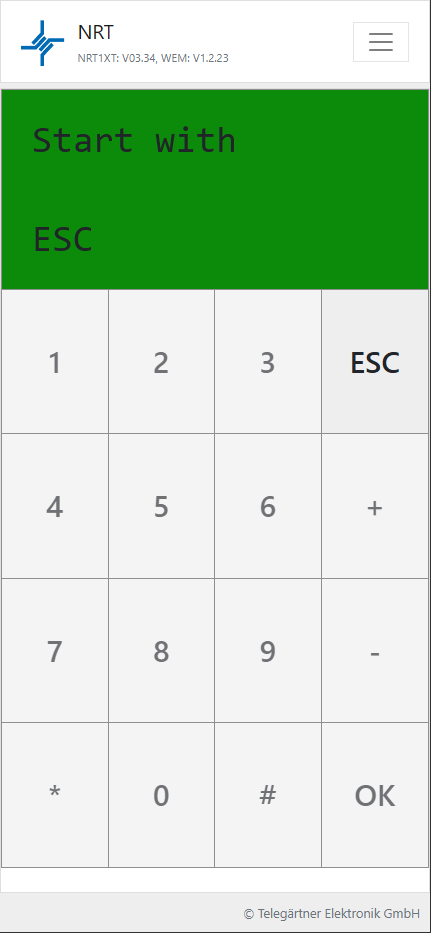
An emulation of the PRG 100 programming device is started.
-
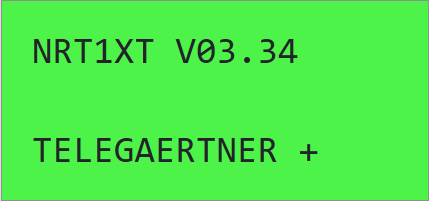
Press the “ESC” button. The display then shows the device type and software version of the NRT.
-
The operation follows the procedure described at (v1-en) Configuration via PRG 100 .
Actions:
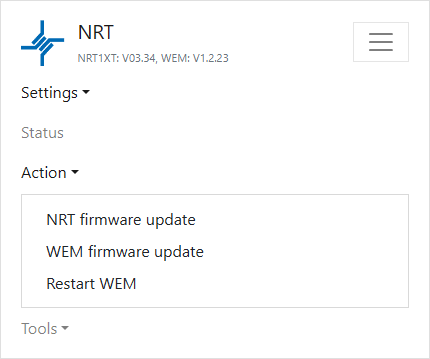
NRT firmware update
The firmware of the NRT can be updated via the WEM module.
-
Select the menu item “NRT firmware update.”
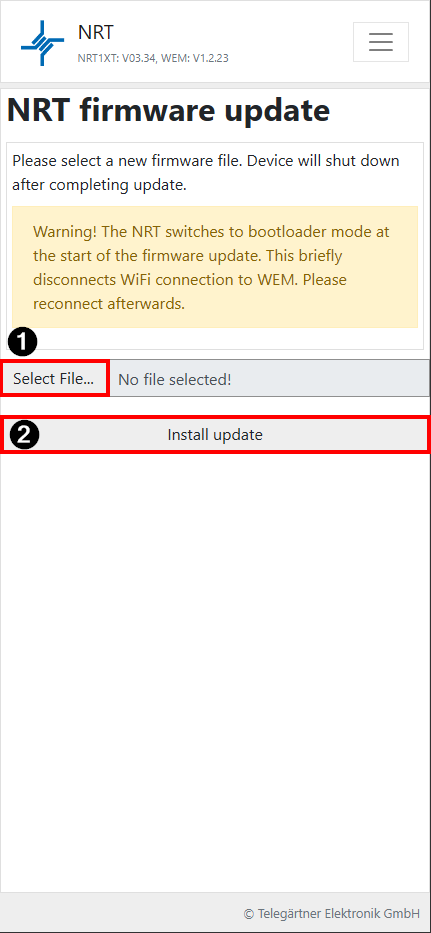
-
Select the correct firmware file (1) (file extension “.bin”).
-
Start the update using the “Install update” button (2).
-
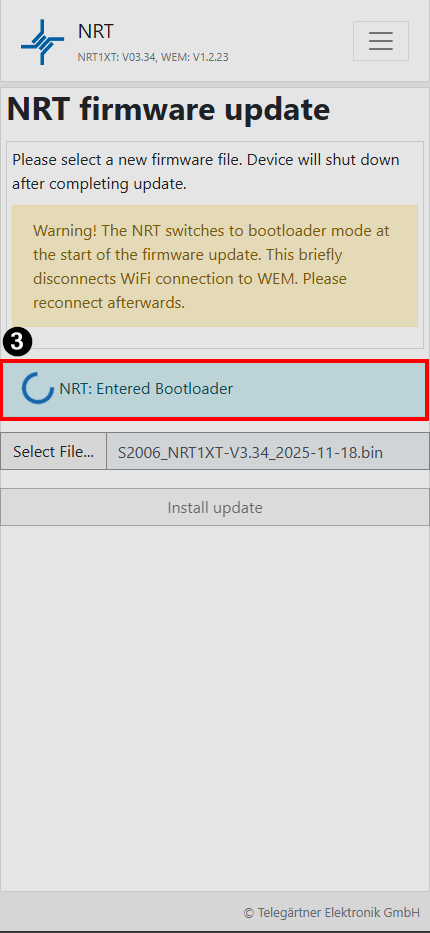
The update runs automatically.
-
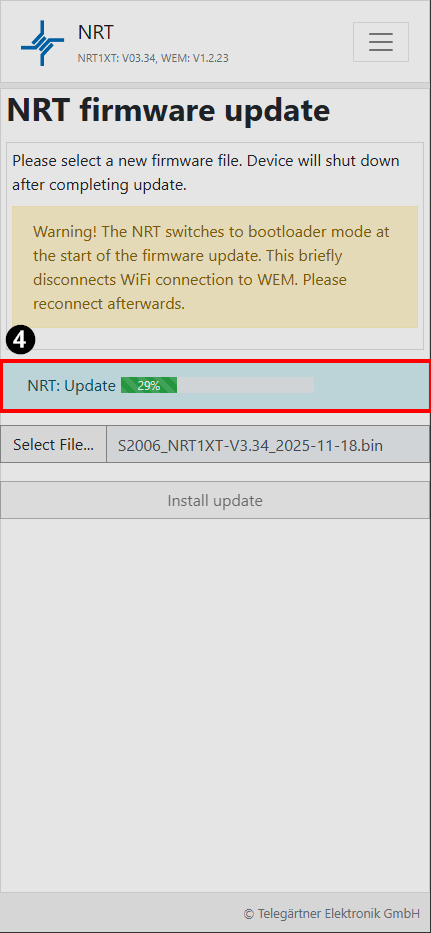
The NRT starts the bootloader.
-
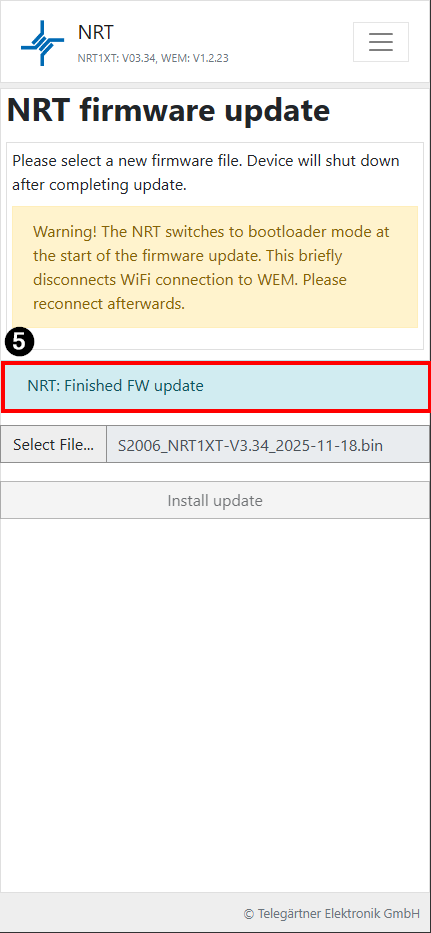
Das Update wird eingespielt, Fortschrittsbalken beachten.
-
Update abgeschlossen. NRT und WEM-Modul starten neu.
Restart the service mode. Your previous device settings remain unchanged after the update.
Check the updated version on the “Status” page.
Firmware update WEM
-
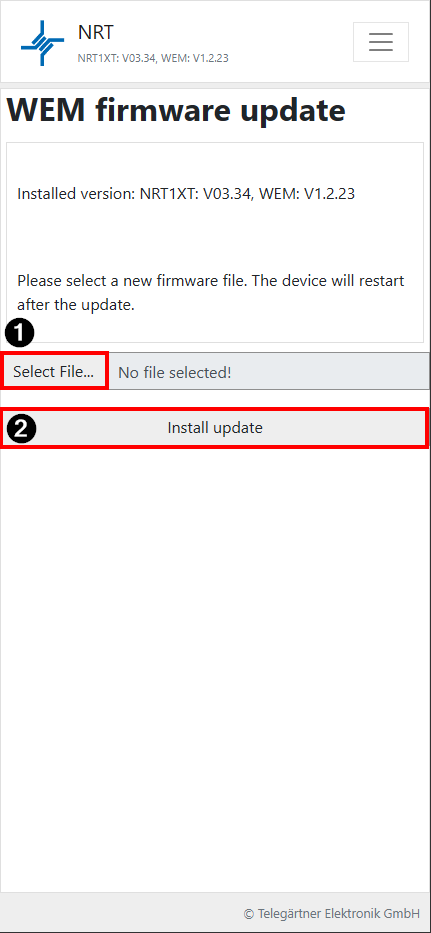
Select the firmware file for the WEM module (1).
-
Start the update using the “Install update” button (2).
-
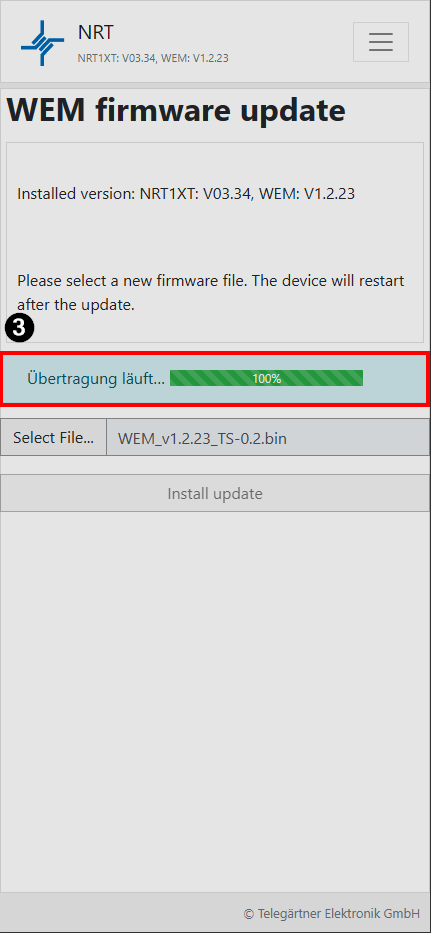
The firmware update starts; observe the progress bar (3).
-
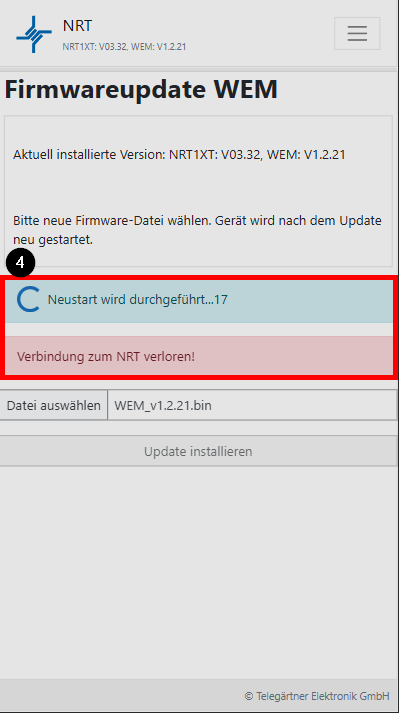
After a successful update, the WEM module must restart. The restart is performed automatically (4).
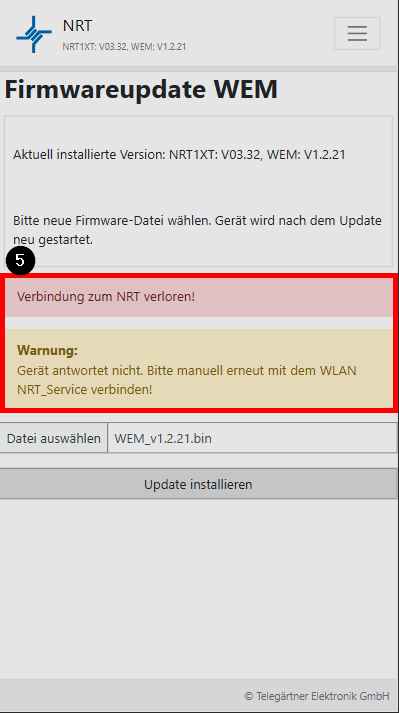
Until the restart is completed, the error message “Connection to NRT lost” is displayed.
-
After the restart, reconnect to the “nrt_service” WiFi network.
Check the updated version on the “Status” page.
WEM restart
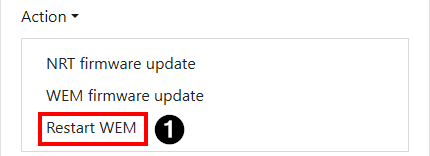
When the menu item “WEM restart” (1) is activated, the WEM module restarts immediately.
After the restart of the WEM module, service mode is disabled.
Tools
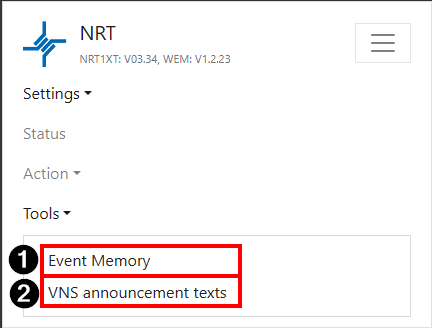
Under the menu item Tools / Event Log (1), the internal event log of the NRT can be read out, viewed and saved.
Using the second menu item “VNS announcement texts” (2), the language of the announcement texts for the VNS function can be set to German or English.
Event Memory
After selecting the menu item “Event Memory”, the following screen is displayed.
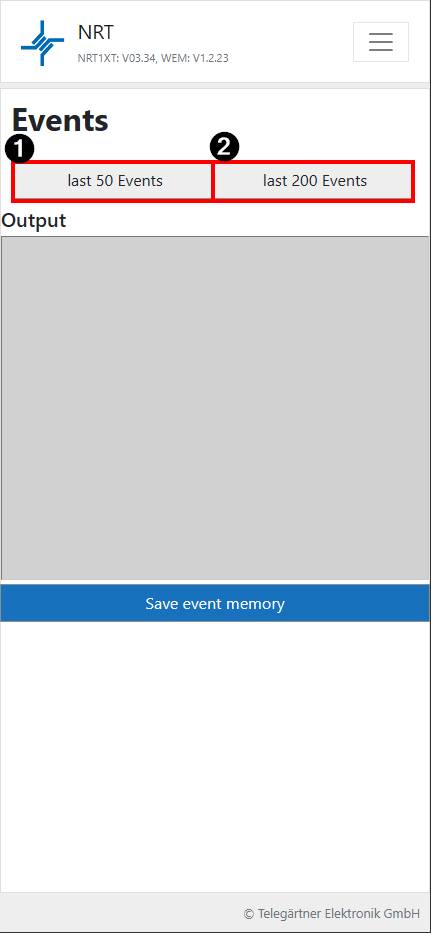
You can read either the last 50 or the last 200 events by pressing button (2) or (3).
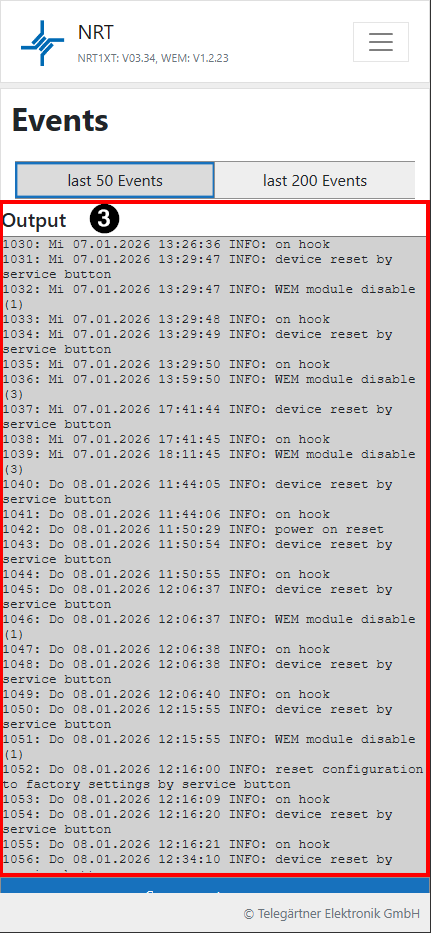
In the “Output” section (3), the corresponding events are displayed.
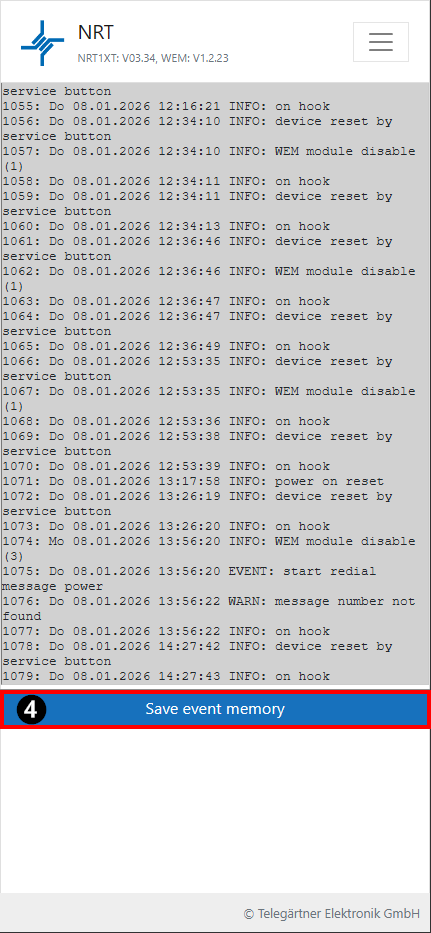
Scroll to the bottom of the page. Using the “Save event memory” button (4), the event log can be saved as a text file.
VNS announcement texts
The language of the announcement texts for VNS messages can be configured via this menu item.
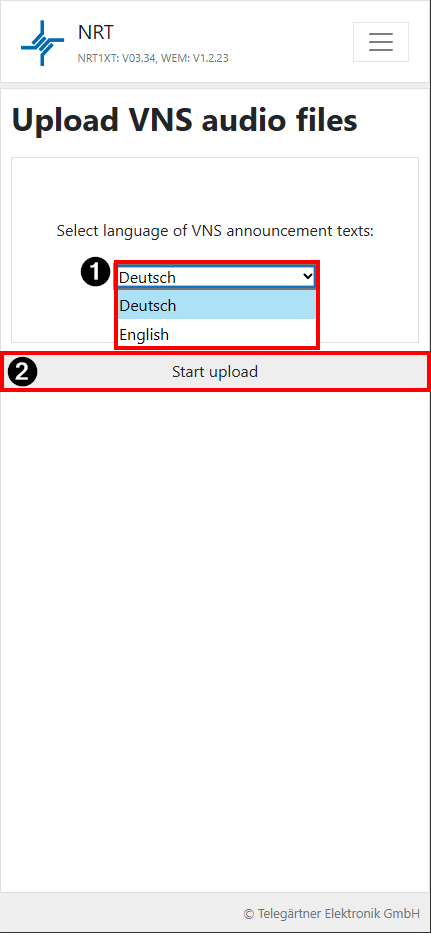
Select the required language from the drop-down menu (1). The upload of the announcement can then be started using button (2).
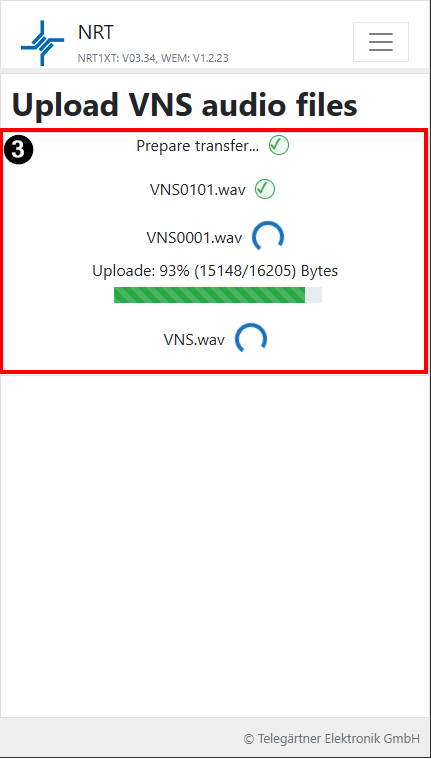
During the upload of the announcement texts, the following status messages (3) are displayed:
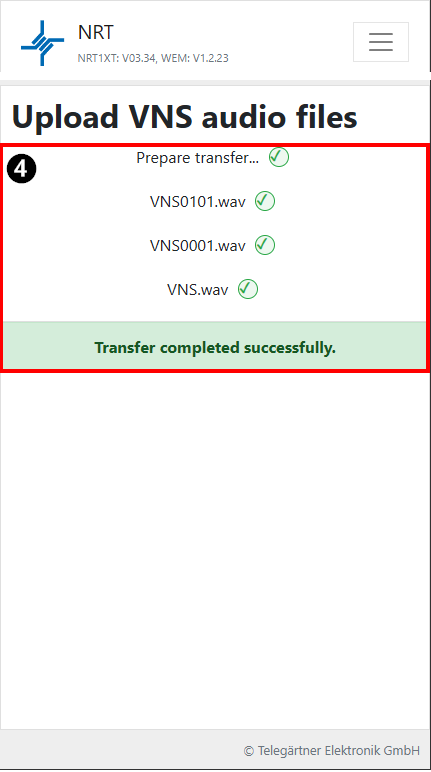
After the process has been completed successfully, the following message (4) is displayed: